
Merge adjacent partitions without orphaning data
Adjacent-volume math, what “contiguous free space” really means, and why deleting the wrong boundary can strand files you thought were safe.
Open merge safety guideDISK MANAGEMENT
Understand what you are changing before you click Apply. This site collects practical workflows, warnings, and field-tested tips for MiniTool Partition Wizard users.
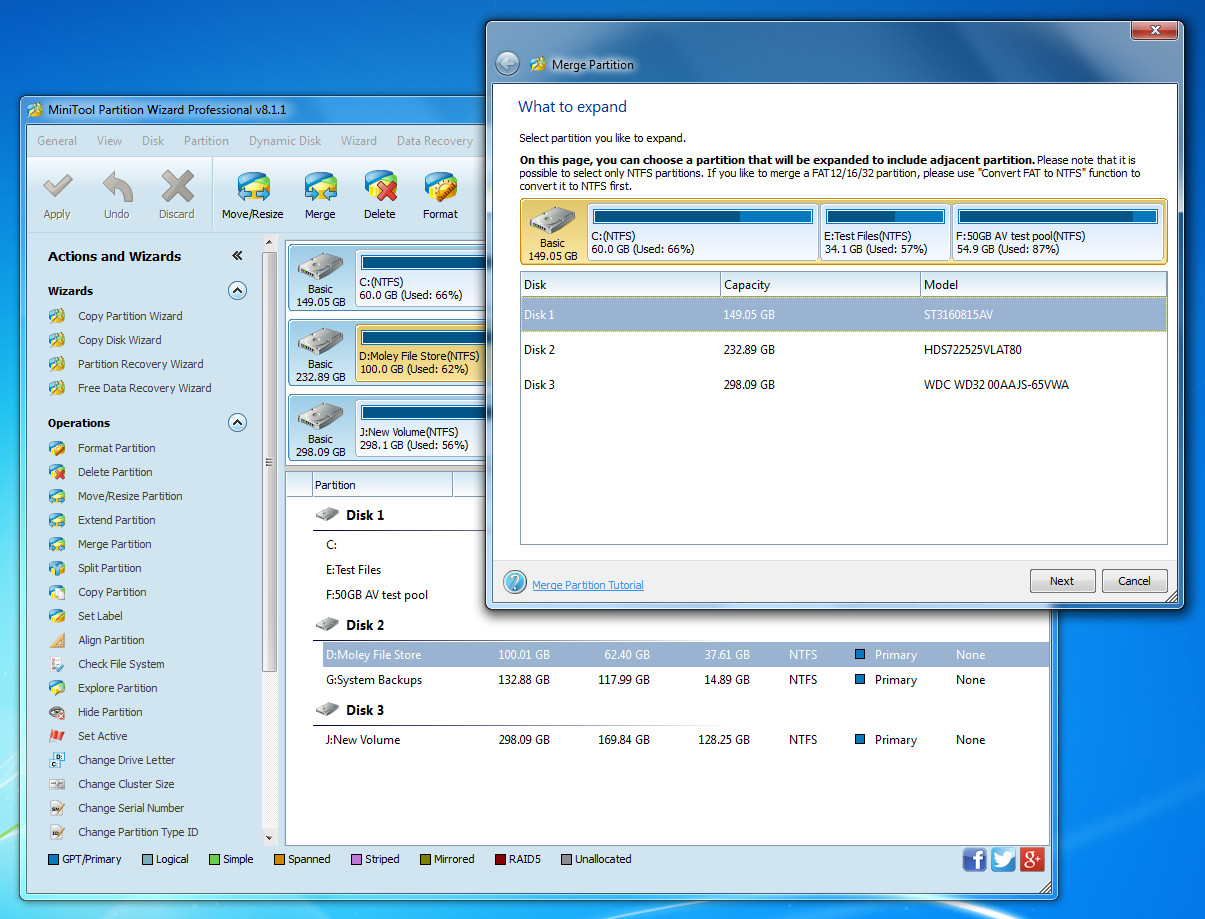
Signal
Snapshot-first mindset
Voice
Plain-language explainers
Reach
SEO-friendly deep articles
EDITORIAL
Partitioning touches firmware, encryption, boot loaders, and filesystem metadata at the same time. Short marketing blurbs rarely survive contact with a real PC that has OEM recovery partitions, dual GPUs, and a half-terabyte of games on C:.
That is why articles here spell out prerequisites, show the order of operations, and link sideways when a topic forks—resize work often collides with BitLocker or EFI sizing, so we cross-link instead of pretending every machine is identical.
If you are new, skim the FAQ first; if you already know Disk Management, jump to the blog guides for step-by-step screenshots and rollback language you can follow offline.
PLAYBOOKS
Each playbook is a full article—use them when you need ordered steps, not a single FAQ paragraph.
Adjacent-volume math, what “contiguous free space” really means, and why deleting the wrong boundary can strand files you thought were safe.
Open merge safety guideSuspend, resume, and verification language so encryption does not hide a failing shrink—and you know when to stop and re-key instead of pushing Apply again.
Read BitLocker partition tipsA short checklist for reading partition offsets, understanding why misalignment costs performance more often than stability, and when to stop chasing perfection.
See SSD alignment guideBEFORE YOU START
Disk tools are powerful because they rewrite layout metadata. Treat every session like maintenance on production data: verify power, cables, backups, and free space before you queue operations.
When stories on this site matter most
We collect real-world failure modes—BitLocker surprises, half-finished clones, and boot loops—so you can read them before your own disk is on the line.
Read field storiesNote which disk is system, which holds data, and whether recovery or OEM partitions exist. Screenshots help if you need to roll back mentally.
File History or a second physical drive beats hoping undo works. Cloud sync alone is not a block-level backup for partition moves.
Encrypted volumes need a clean suspend-or-decrypt plan. Skipping this step is a common source of opaque errors mid-wizard.
Large clones and checks can run for hours. Laptops should be plugged in; USB bridges deserve premium cables if you are cloning through them.
HARDWARE LAYER
The same partition math can succeed on an internal NVMe and fail on a shaky bridge chip—treat external paths as first-class risk.
Throughput numbers on the box rarely match sustained clone speeds. Short cables, powered hubs, and avoiding shared controllers reduce UASP drops.
Cloning heats both source and target. Elevate the chassis, keep vents clear, and pause if the machine thermal-throttles mid-verify.
SMB shares are fine for file backups, not for pretending a NAS volume is a local block device—always confirm what the OS thinks is physical Disk N.
QUICK WINS
None of these replace backups—but they remove entire classes of avoidable mistakes before you queue operations.
System disk vs data disk vs external scratch. Write it down once so you never apply a layout change to the wrong physical device.
Windows updates, hibernation files, and sudden log growth need slack. Shrink conservatively and re-check free space after cleanup.
Mixing style conversion, encryption changes, and clone jobs in one session multiplies failure modes. Finish, reboot if needed, verify, then continue.
A USB installer or recovery image should match your firmware mode (UEFI vs Legacy). Refresh it when you change motherboard or OS major version.
SIX CHECKS
Keep this list visible on a second screen—most items take seconds and prevent hours of rework.
BACKGROUND LOAD
Disk tools compete for the same platters and controllers as Windows Update, AV scans, and sync clients—pause the noisy neighbors so progress bars reflect real work.
Large pending updates rewrite recovery layouts and chew I/O. Finish or pause them, reboot cleanly, then reopen Disk Management and your partition tool with a fresh layout view.
Real-time scanning during block moves can slow operations and mask timeouts. Schedule a maintenance window where scans are not racing the same volume you are resizing.
Fresh OS builds or restored profiles sometimes kick off indexer storms. They are not fatal, but they steal queue depth—check Activity before you interpret a hung wizard.
OneDrive, Dropbox, and Steam movers can saturate USB bridges you thought were dedicated to cloning. Pause sync or point it away from the disks under maintenance.
OVERVIEW
A short walkthrough helps you recognize the UI before you change anything on a production disk.
Local walkthrough video (no autoplay audio surprise).
NEXT STEPS
Videos show where buttons live; they cannot see your BitLocker state, recovery partitions, or which physical cable is Disk 1. Use this block as a bridge before you open any wizard on hardware you care about.
Open Disk Management or your partition tool in read-only mode first: confirm disk order, letters, and which bar is actually Windows before you queue a shrink or clone.
Match the scenario on this site—low space, clone-and-swap, boot repair—then read the matching article end-to-end once. Skipping straight to Apply after a two-minute clip is how small mistakes become long recoveries.
If anything in the preview does not match what you expected, stop. Capture screenshots, check the FAQ branch that fits your symptom, and only resume when the plan still makes sense in words you could explain to someone else.
CONTEXT
Motion shows where menus live; articles explain what each commit changes on disk—and what can still go wrong if power drops mid-operation.
Use the walkthrough above to recognize disk vs partition selection, pending-operation queues, and the difference between applying a plan versus only simulating it.
When you are ready for step-by-step sequences, the blog posts link forward into FAQ branches for BitLocker, boot repair, and clone verification—so you are never stuck guessing the next click.
View all postsABSTRACTIONS
When the disk map shows more layers than physical platters, confirm which block device each operation will touch—virtual disks inherit the same caution as bare metal.
Detach or offline images you no longer need before deletes or merges. A forgotten mount can block shrink math or hide space you thought was free.
GRUB, BCD, and ESP sizing interact. Resize operations should preserve boot files for every OS on the chain—read both ecosystems' docs before reclaiming megabytes near the front of the disk.
Checkpoints and differencing disks change where writes land. Snapshot or export guests before host-level partition surgery so rollback paths stay obvious.
TOPIC MAP
Each card links to a standalone article with steps, caveats, and links back to the FAQ when you need branching troubleshooting.
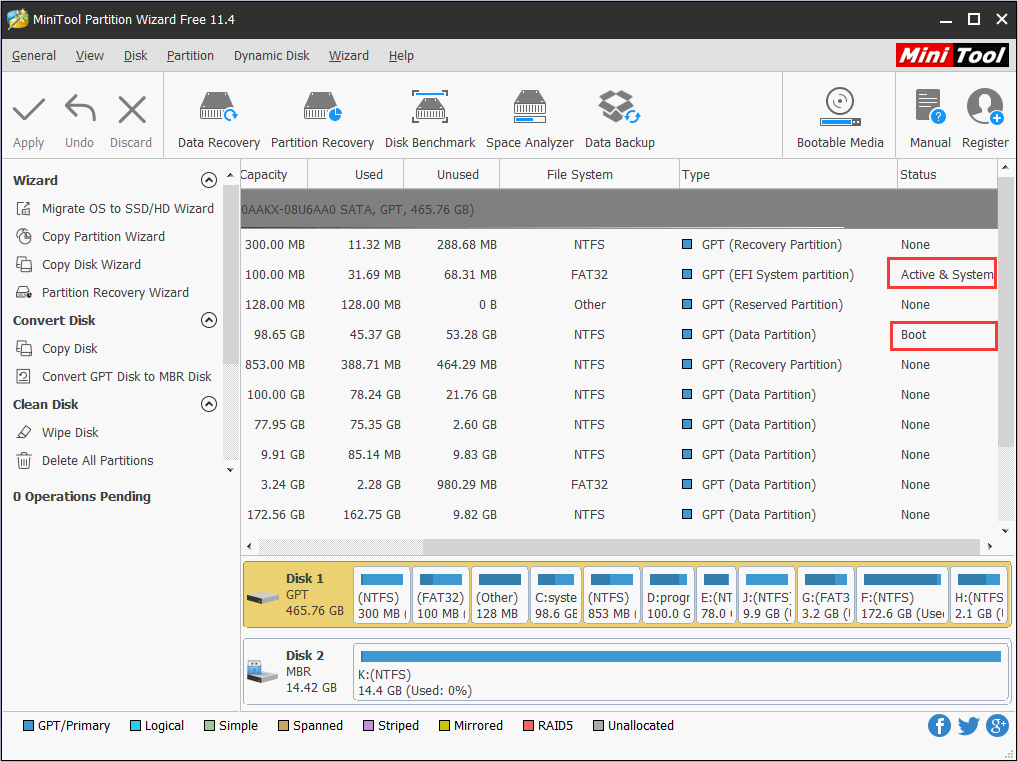
EFI vs Legacy, missing bootmgr, and repair media—explained without assuming you already live in bcdedit.
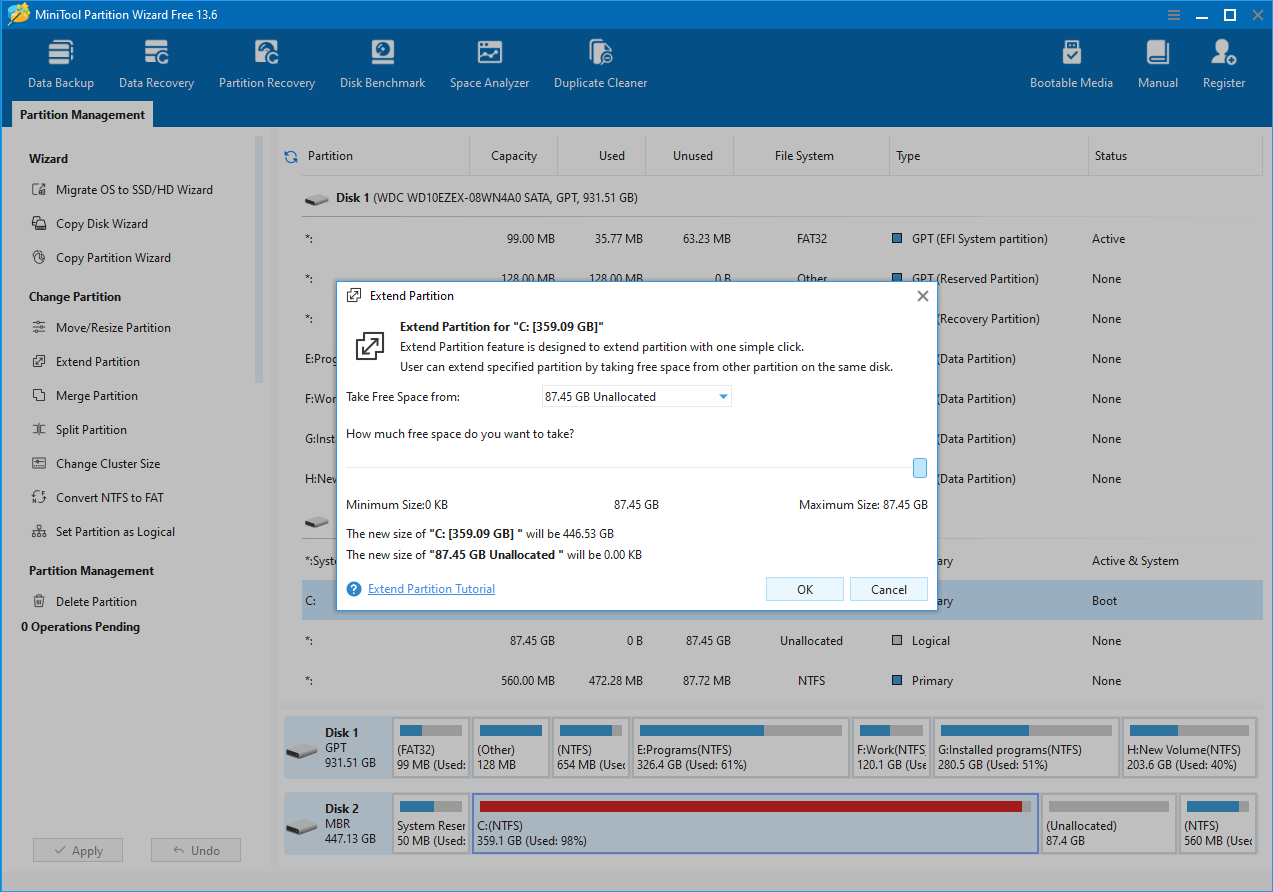
Shrink, move free space, and clean hibernation or installer caches without gambling on a single risky shrink pass.
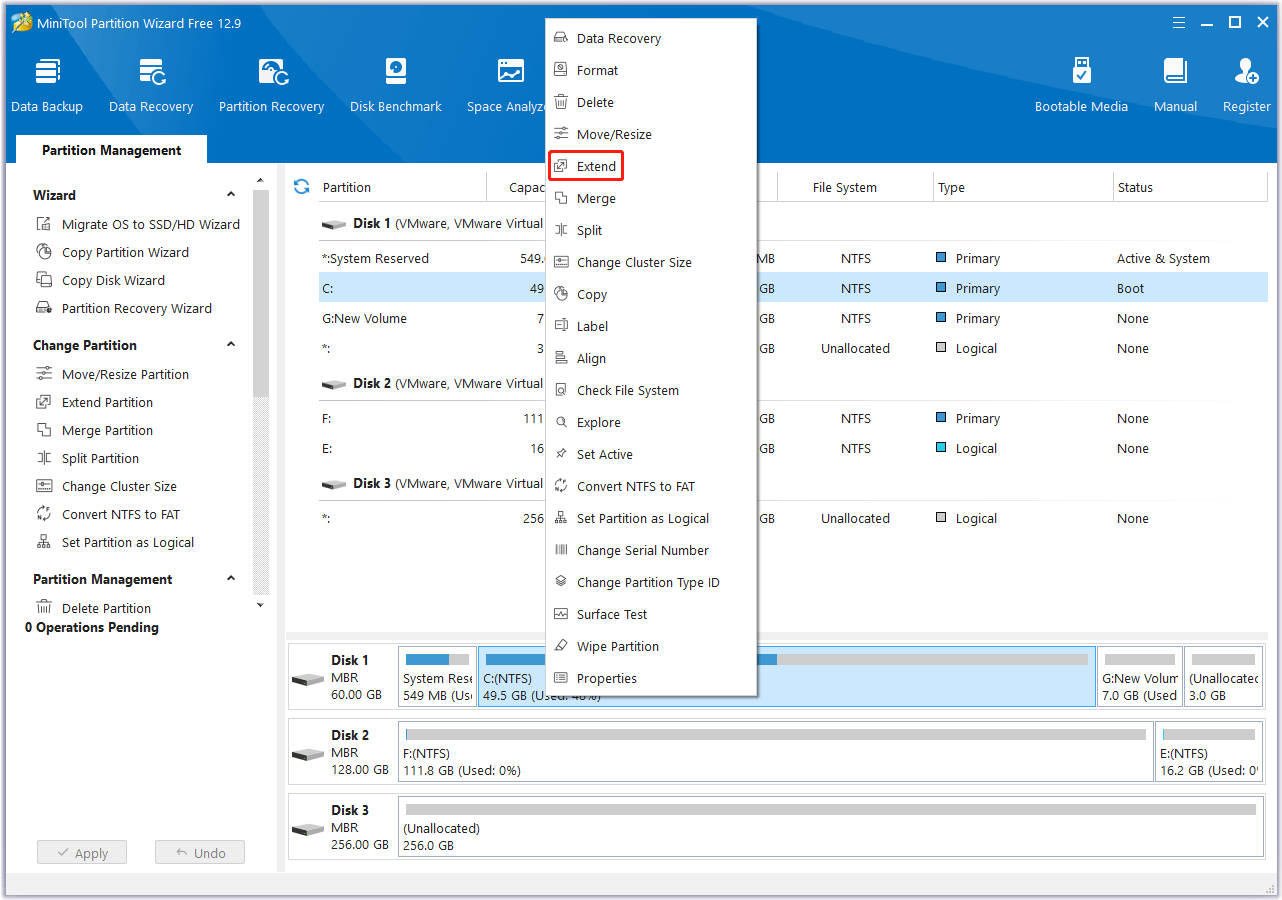
A conservative order of operations: inventory, defrag if required by the file system, shrink source, extend target, validate boot.
Understand capacity limits, Windows 11 readiness, and when conversion is worth scheduling downtime.
READ THE MAP
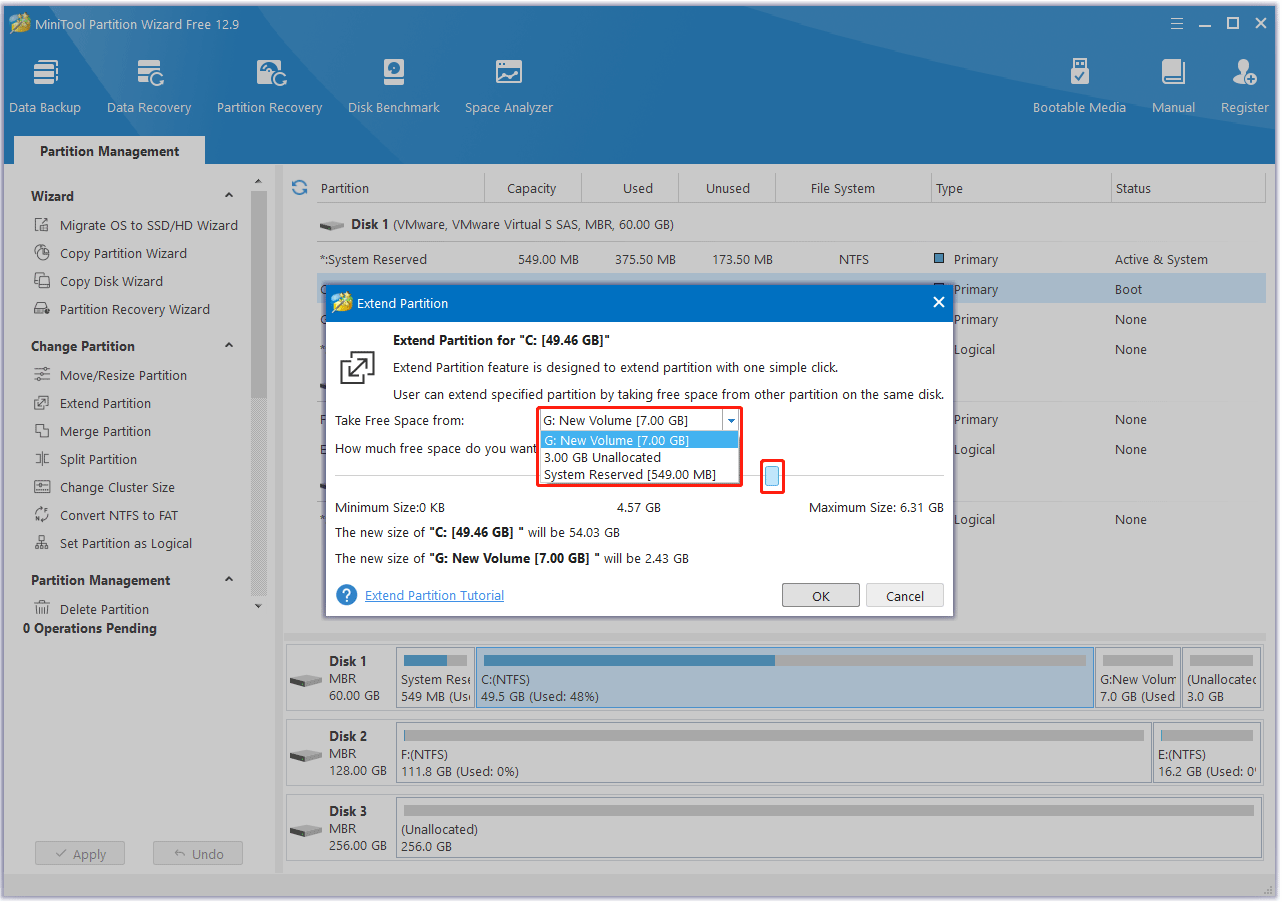
Colors and segment widths are not decoration—they encode filesystem boundaries, recovery islands, and unallocated gaps you may move later.
Before dragging sliders, confirm which bar is the system volume, which holds hibernation or page files, and whether a tiny EFI partition sits at the start of the disk. Misreading that stack is how good intentions still produce boot loops.
REALITY CHECK
Calm corrections you can repeat to yourself when forums shout conflicting advice.
Reality: immovable clusters, snapshots, and page files can pin the end of a volume—cleanup and planning belong before shrink, not after retries.
Reality: recycle bins, shadow copies, and mounted images can still reference blocks—refresh views in more than one tool before assuming empty space.
Reality: firmware mode, ESP contents, and driver stacks still have to match the target machine—plan a boot smoke test, not just a file count.
WHY IT MATTERS
Three high-leverage jobs people delegate to a partition manager—each with a calm interface and predictable checkpoints.

Move free space where Windows needs it, keep file systems intact, and avoid last-minute cleanup scrambles before updates.
Duplicate a disk when you swap SSDs or rebuild a laptop. A verified clone is cheaper than downtime.

Alignment, partition style, and recovery partitions all affect boot reliability—good tools make them legible.
PICK YOUR TOOL
Windows already covers simple shrinks and volume letters. A partition manager earns its place when you need cloning, safer merges, alignment checks, or clearer previews before Apply.
TIMING
Partition jobs are boring until they are not—pick windows where a slow finish or reboot will not strand you.
Large clones and surface scans rarely respect your calendar. Start when you can afford to babysit progress bars and read dialogs slowly.
If a laptop is your only machine, avoid risky layout changes ahead of trips—carry a verified image instead of improvising at T-12 hours.
Let Feature Updates finish reshuffling drivers and recovery partitions, then reassess free space—mid-update disk surgery stacks unknowns.
FIELD NOTES
These are recurring situations we explain in long-form posts—written for searchers and for humans doing IT at home.
We walk through shrinking, moving boundaries, and verifying backups so you do not learn disk geometry the hard way.
Cable stability, power plans, and source disk health matter. Our clone article lists a sober checklist before start.
Boot media, EFI vs Legacy, and BitLocker states interact. We separate symptoms so you can recover methodically.
PAUSE TRIGGERS
None of these are moral judgments—just signals that the next hour is cheaper spent on diagnostics than on retries.
Hardware instability will corrupt any layout change. Clone or image first, replace the disk, then revisit partitioning.
Hidden OEM partitions, BitLocker protectors, or mounted VHDs can block moves. Map dependencies before dragging boundaries.
Unmovable files, shadow copies, or hibernation can pin the tail of a partition—defrag or cleanup plans belong before shrink, not after frustration.
Changing firmware mode or rebuilding ESP without a rescue stick is a recipe for Monday surprises. Prepare media first.
Clones and long checks need stable power and signal. Park the job for a desk session with AC and a known-good cable.
GLOSSARY SNAPSHOT
Short definitions you can skim before opening heavier articles—useful when a dialog throws jargon without context.
AFTER APPLY
Treat the minutes after a layout change like a mini postmortem—even when everything looks green in the UI.
Wait for full completion, eject external enclosures cleanly, and avoid forced shutdowns while metadata still flushes.
A controlled restart surfaces missing boot files early—better than discovering them Monday morning via a black screen.
Confirm Explorer, Disk Management, and your backup tool all agree on capacity and mount points after the change.
If partition sizes or labels shifted, refresh backup jobs and restore drills so the next crisis matches reality.
QUICK ANSWERS
Jump to the full FAQ page for expanded troubleshooting trees.
See all questionsHealthy operations target metadata and free space, but power loss or disk errors can corrupt data—always verify backups first.
Decrypting or suspending protection avoids opaque failures mid-operation. See our BitLocker checklist article.
EXPLORE THE SITE
Each area is written to stand alone—jump in where your current risk lives, then cross-link when you need the next layer of detail.
Resize, merge, clone, wipe, and benchmark—what the wizard is doing under the hood and what to verify before Apply.
Narratives that bundle warnings, timelines, and post-change checks—useful when you learn better from context than from bullet lists alone.
Integrity-minded habits, checksum notes where we include them, and a calm checklist for what to confirm after install—all on this site.
Branching answers for BitLocker, boot repair, resize anxiety, and clone troubleshooting—built for scanning on a second monitor.
ORIENTATION
Skim top-to-bottom once, then deep-link into the article that matches your risk—each block is written to stand alone later.
FROM THE BLOG
Each article opens on its own page for printing and deep linking.
A conservative sequence: inventory, backup, defrag if needed, shrink, extend, verify boot.
Continue reading ↓
Understand capacity limits, firmware expectations, and when conversion is worth the friction.
Continue reading ↓
Source health, target sizing, and post-clone boot repair—explained as a checklist, not marketing fluff.
Continue reading ↓ALSO ON THE BLOG
Merge safety, encryption guardrails, and SSD alignment—topics that rarely fit in a single FAQ answer.
Adjacent volumes, free-space math, and why a dry run checklist beats improvising mid-wizard.
Continue reading ↓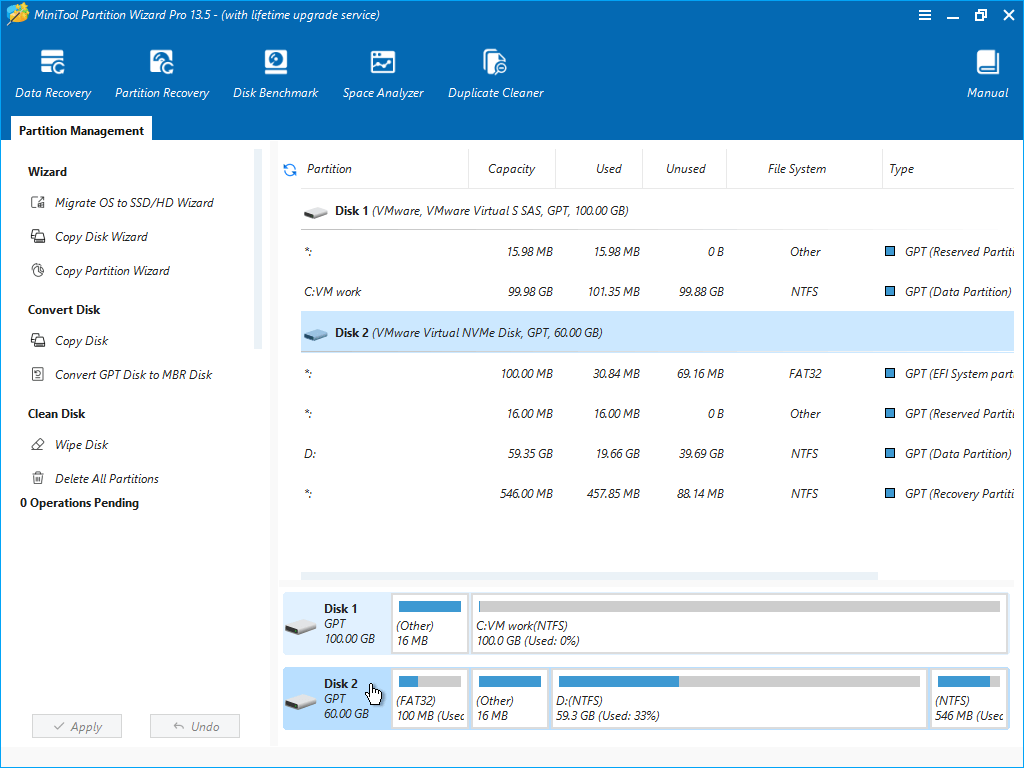
Suspend, resume, and verification steps so encryption does not mask a failing operation.
Continue reading ↓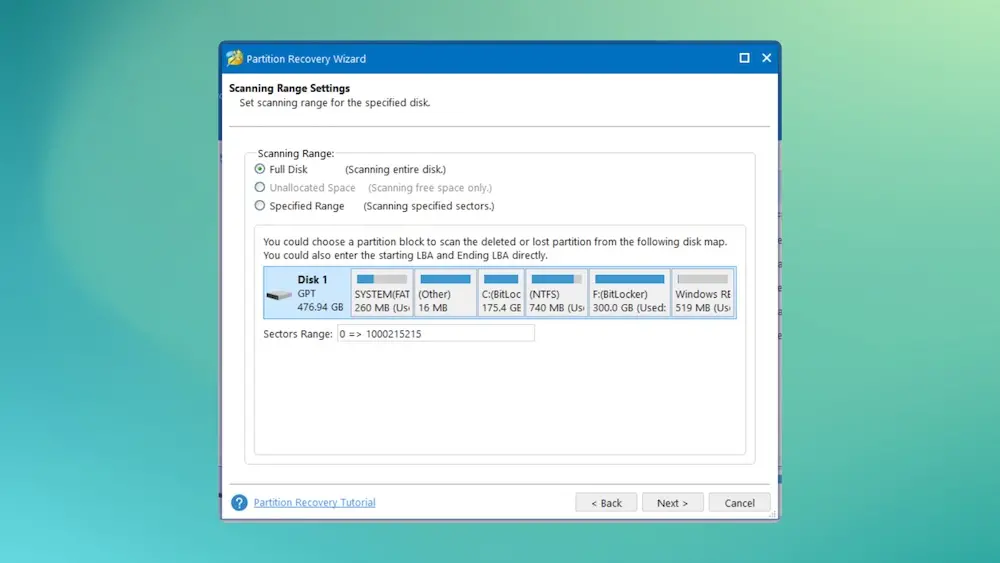
What alignment means for performance, how to read offsets, and when to stop chasing perfection.
Continue reading ↓SCOPE
This domain publishes independent English explainers. It does not replace vendor support, warranty service, or your own verification on hardware you own.
Articles describe common workflows and failure patterns observed in general Windows practice—they are not tailored legal, medical, or financial advice.
Software names and screenshots refer to products for identification; trademarks belong to their respective owners. Only run installers you intentionally fetched from a source you trust, and verify filenames and signatures when you can.
You want a checklist before resizing C:, cloning to an SSD, or decoding GPT warnings without drowning in forum noise.
You need calm language to brief non-technical teammates about downtime windows, backups, and rollback options.
You are building mental models of disks, volumes, and boot chains—use the glossary and FAQ as spaced repetition, not cram material.
READ NEXT
Each article stands alone—open them in new tabs if you are mid-upgrade and want a second opinion before you click Apply.
Inventory immovable files, plan where free space lands, and know when to pause for BitLocker or recovery partitions.
Open resize walkthroughCapacity limits, Windows 11 readiness, and conversion timing—explained as a decision checklist instead of a forum argument.
Read layout comparisonRepair media, EFI expectations, and language that helps you stop spiraling when bootmgr errors stack up.
See boot recovery notesCHECKLISTS
Keep them beside the machine—most mistakes come from skipping a single verification step, not from misunderstanding the whole wizard.
DEEPER DIVE
Partition managers expose the same levers as built-in tools—what changes is visibility, ordering, and guardrails. Use this section as a bridge between skimming the hero and committing to a long article.
If you are troubleshooting low disk space, start with cleanup and measurement before resizing: shrinking C: while installers or hibernation files are pinned at the end of the volume is how people lose afternoons to retries.
If you are upgrading hardware, treat cloning as rehearsal: verify used capacity, keep rescue media handy, and only bring both disks online after you understand how Windows will see signatures and boot entries.
When in doubt, pause, export a screenshot of Disk Management or your wizard preview, and cross-check the FAQ—many errors repeat across machines once you recognize the pattern name.
Use the download page for installer hygiene, checksum habits when you have them, and notes about what to verify after setup.